

Before you start
Before you start
You will find the setup guide at the top of the Rava Reviews dashboard. When you return from Shopify, it checks whether each saved change is active.
Have these ready before you begin:
- Access to Online Store → Themes and permission to customize the published theme.
- A published Online Store 2.0 theme. If your store uses several product templates, note which ones need reviews.
- An export from your previous review app, if you are migrating. Rava accepts Rava CSV plus exports from Loox, Judge.me, Yotpo, Stamped, and Ali Reviews up to 100 MB.
- A monitored reply-to email and a sensible delay after fulfillment for review requests.
Keep the original Shopify tab open. Setup help opens in a new tab, so you can move through the checklist without losing your place.
Step 01
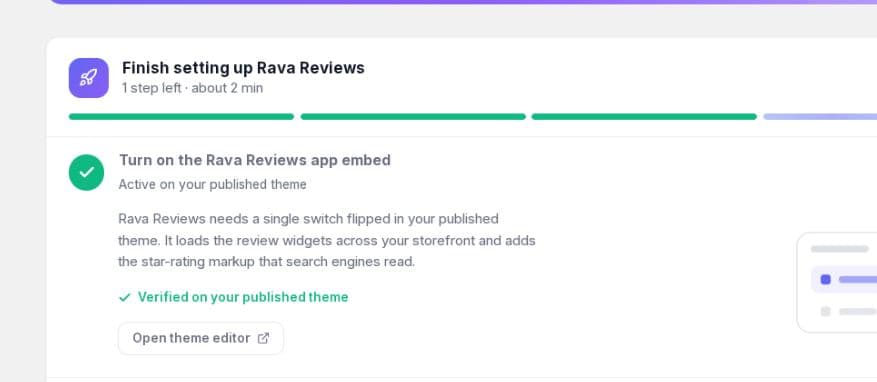
Turn on the Rava Reviews app embed
The app embed is the storefront loader. It lets Rava widgets run across the theme and adds the product rating markup that search engines can read. Without it, a block may exist in the theme editor but never appear to shoppers.
- On the Rava dashboard, expand Turn on the Rava Reviews app embed.
- Select Enable app embed or Open theme editor. Rava opens Shopify at the correct app-embed panel.
- Confirm Rava Reviews is switched on.
- Select Save in the Shopify theme editor.
- Return to Rava. The dashboard rechecks the published theme and changes the step to Active on your published theme.
If the deep link does not open the right panel, go to Online Store → Themes → Customize → App embeds, turn on Rava Reviews, and save. Make sure you are editing the published theme.
Step 02
Add Product reviews to the product page
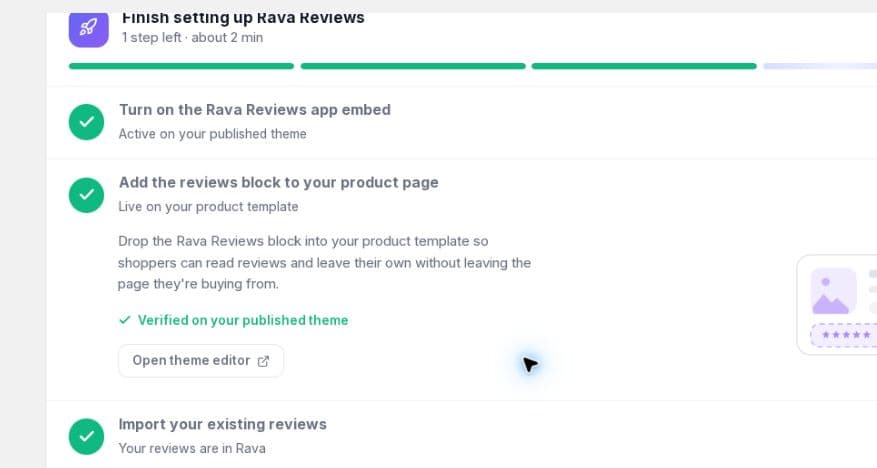
The Product reviews block lets shoppers read product-specific feedback and submit a review without leaving the product page.
- Expand Add the reviews block to your product page on the setup guide.
- Select Add reviews block or Open theme editor.
- In the product template, confirm the app block is named Product reviews.
- Usually, place it below the product information, materials, sizing, or care details.
- Select Save, then return to Rava and look for Live on your product template.
If a custom product template does not inherit the block, open that template in the theme editor and choose Add block → Apps → Product reviews. Repeat for every product template your live catalog uses.
Preview one product with reviews and one without. Both layouts should render cleanly. On mobile, the block must not cover product options or the add-to-cart action.
Step 03
Bring over your existing reviews
This step is optional. Use it when the store is moving from another review app or has a prepared Rava CSV. Import the reviews before launch so they appear on the store's product pages.
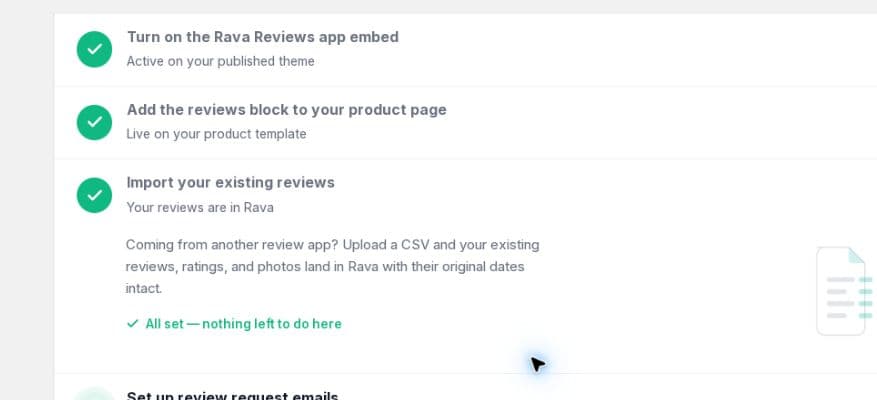
- Expand Import your existing reviews and select Import reviews. Rava opens Settings → Import / Export.
- Choose Import, then select the source tab: Rava CSV, Loox, Judge.me, Yotpo, Stamped, or Ali Reviews.
- Choose the unmodified export file first. Rava validates the provider's required columns before starting the import.
- Select Start import and allow processing to finish.
- Open Manage Reviews and spot-check product assignment, rating, date, reviewer name, and media before publishing widely.
The dashboard marks this step complete when reviews exist in Rava. If processing has finished but the check is still gray, reload the dashboard once.
First review app? Select Rava is my first review app in the checklist. Do not create a placeholder import just to turn the step green.
For a large or complex migration, use the full review import checklist.
Step 04
Set up automatic review request emails
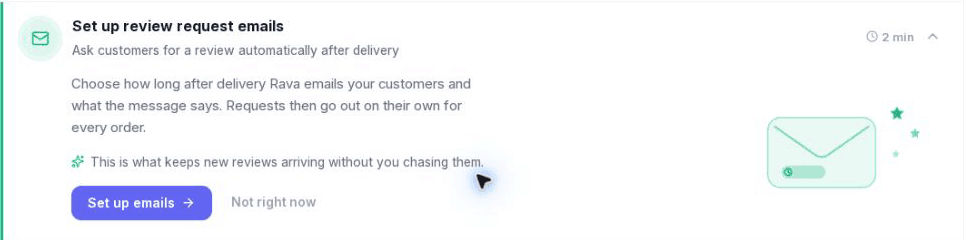
Rava schedules review request emails after fulfillment. Set the delay for when a customer is likely to have received and tried the product.
- Expand Set up review request emails and select Set up emails. Rava opens Settings → Email.
- Turn on Send review request emails.
- Choose Days after fulfillment between 1 and 90. Account for shipping time and how long the product takes to evaluate.
- Enter a monitored Reply-to email.
- Review the template language and open Review request email if the subject or message needs to match the store's voice.
- Use Shopify's main Save action. Rava marks the step complete after the store-specific email settings are saved.
Saving an email template and saving the Email settings are separate actions. If the checklist stays incomplete, return to Settings → Email and make sure the main settings save completed.
For message structure, timing, and brand-voice guidance, see edit a review request email.
Optional
Show ratings on collection cards
Show a product's stars and review count beside its title or price in collection grids, featured collections, search results, and other product lists. This is an optional placement: adding the Product reviews block to a product detail page does not automatically add stars to product cards.
Start with a product that has at least one published Rava review. Rava syncs its rating and count to Shopify product metafields. The theme or app block then displays that data on each card.
1. Use your theme's product rating setting
In Dawn and themes with a similar control, enable the existing rating display. No Liquid editing is needed.
- Go to Online Store → Themes → Edit theme (called Customize in some versions).
- Select Collections → Default collection, or the collection template used by the page you want to change.
- Open Product grid. Under Product card, turn on Show product rating.
- Save, then open the live collection page and find the product with published reviews. Its card should show the rating and review count.
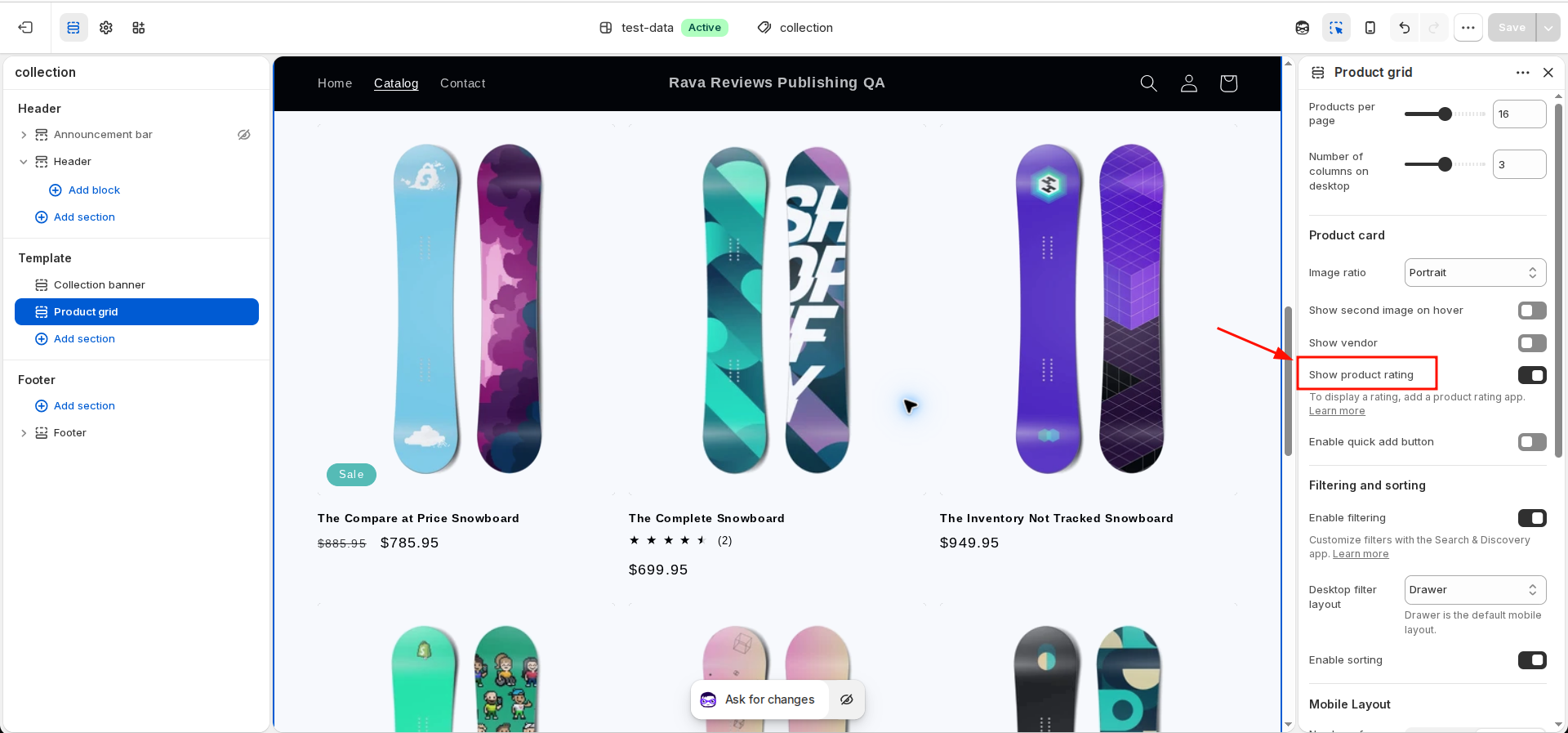
Repeat for other collection templates and any Featured collection, Search results, or product recommendation section that has its own rating setting. A page listing collections shows collection cards, not individual product ratings.
These are the theme's stars, using Rava's data. Their appearance follows the theme; changes in Rava's Star Rating widget editor apply to the Rava app block. Products without published reviews are usually hidden by the native rating display.
2. Use an app block in themes that support product-card blocks
Some newer themes let you expand Product grid → Product card and insert an app block inside the repeated card. If that location offers Add block → Apps → Rava Reviews → Star Rating, add it beside the title or price, then save. Configure the app block's appearance in Rava Reviews → Widgets → Star Rating.
Check several cards: each must display its own product's rating. Adding one app block below the whole grid will not repeat it on every card. Availability depends on the theme and version; if the card cannot accept app blocks, use the native setting or ask the theme developer about a compatible placement. Shopify documents how themes provide app block support.
3. Advanced fallback: add a Liquid snippet to the product card
If your theme has neither option, a theme developer can add a small server-rendered rating. Duplicate the theme first and preview the change there before publishing it. This snippet reads Rava's live product rating; it does not load the full reviews widget.
- In the duplicate theme, open … → Edit code. Create
snippets/rava-product-card-rating.liquidand paste the snippet below. - Find the repeated product-card file. Dawn uses
snippets/card-product.liquid; other themes may useproduct-card.liquid,product-grid-item.liquid, or a product-card block. Search for the code that renders the card's title and price. - Insert the render line below the title or price, inside the card. Pass the same product variable used by the nearby price code.
{% render 'rava-product-card-rating', product: card_product %}Use card_product in Dawn. If the card uses product, item, or product_card_product, replace only the value after product:. A theme block using the nearest product can pass closest.product. Do not paste the render line outside the product loop or use a collection object.
Liquid snippet for rava-product-card-rating.liquid
Copy all of this code into the new snippet file.
{%- liquid
  assign rating_data = product.metafields.rava_reviews.avg_rating.value
  assign rating_count = product.metafields.rava_reviews.rating_count.value | default: 0 | plus: 0
  assign rating_value = rating_data.rating | default: 0 | times: 1.0 | at_least: 0 | at_most: 5
  assign star_path = 'M12 2l3.09 6.26L22 9.27l-5 4.87 1.18 6.88L12 17.77l-6.18 3.25L7 14.14l-5-4.87 6.91-1.01L12 2z'
-%}
{%- if product != blank and rating_count > 0 -%}
  <div class="rava-card-rating" style="display:flex;align-items:center;gap:6px;margin:6px 0;">
    <span role="img" aria-label="{{ rating_value | round: 1 }} out of 5 stars" style="display:inline-flex;gap:2px;">
      {%- for star in (1..5) -%}
        {%- liquid
          assign previous_star = star | minus: 1
          assign fill_width = rating_value | minus: previous_star | at_least: 0 | at_most: 1 | times: 24
        -%}
        <svg width="18" height="18" viewBox="0 0 24 24" aria-hidden="true" focusable="false" style="display:block;flex-shrink:0;">
          <path d="{{ star_path }}" fill="#d1d5db" />
          <svg width="{{ fill_width }}" height="24" overflow="hidden">
            <path d="{{ star_path }}" fill="#b45309" />
          </svg>
        </svg>
      {%- endfor -%}
    </span>
    <span style="font-size:12px;">{{ rating_value | round: 1 }}/5 ({{ rating_count }} {% if rating_count == 1 %}review{% else %}reviews{% endif %})</span>
  </div>
{%- endif -%}
This example shows fractional stars and a count, and hides products with no published reviews. Its colors, 18px icons, and English labels are set in the snippet; they do not inherit Rava's app-block settings. A theme developer can adjust them. The values come from rava_reviews.avg_rating and rava_reviews.rating_count, using Shopify's Liquid metafield values.
Save both files, preview, and publish the duplicate only when it looks correct. To remove it, delete the render line from each edited card file, then remove the snippet once nothing references it. Theme changes or upgrades may require you to add the snippet again.
Check each product-list placement
- Test a reviewed product, an unrated product, and a fractional rating on desktop and mobile. Confirm each card matches its product's reviews.
- Try sorting, filtering, and pagination. Search apps, page builders, quick-search popups, and recommendation apps may render separate cards and need their own integration.
- If two ratings appear, keep one placement and disable the other theme rating or app block. Do not remove your full Product reviews block.
- If nothing appears, confirm the review is published, you saved the correct theme and template, and the card receives the correct product. A theme's native rating control reads Shopify's
reviews.ratingandreviews.rating_count, which Rava also updates.
Theme labels and capabilities vary. See Shopify's template guide or contact Rava support with your theme name, version, and the collection or listing URL.
Launch check
Run a two-minute launch check
Return to the dashboard and confirm the required theme steps are green. Optional steps should either be complete or intentionally skipped. Then test the live store in a private browser window.
- Open a live product page.
- Confirm the Product reviews block loads and uses the correct product's reviews.
- Check the page at desktop and mobile widths.
- Open a product that has no reviews and confirm the empty state renders correctly.
- After the next fulfilled test order, verify that its request appears under Review Requests with the expected schedule.
If a step will not turn green
- App embed: confirm the switch is on in the published theme, select Save, return to Rava, and reload.
- Product block: confirm Product reviews is saved on the product template that the live product actually uses.
- Import: wait for processing, then verify imported rows under Manage Reviews and reload the dashboard.
- Email: confirm the main Email settings were saved, not only the message template.
If the storefront still does not match the checklist, contact support with the store URL, published theme name, product URL, and the step that is not verifying.
Finish the checklist in Shopify
Return to the Rava Reviews tab in Shopify. The checklist should show every required step in green, and your product page should show the Product reviews block on desktop and mobile.